
Create a Campaign and Load Leads
Create a Campaign and Load Leads
This tutorial covers going from a base VICIdial setup, to agents dialing outbound on a live campaign
- Click on the Campaigns link and then select copy campaign. (When you start up with a Freevoice Dialer, there are already ready made campaigns that have been tested and assured of their workability. Copying these campaigns is preferred because we will know that any campaign you build is in working order.)

Click submit fo create your new campaign
Now that we have created a new Campaign, you can see the detail view of the Campaign Modification screen with many more options that can be set for the camaign. For example, you are able to change the volume of calls sent out by modifying the call ratio, or change the behavior of calls by changing the routing extensions.


With our campaign set the way we like, we now need to create a LIST to import your leads to. Click on List, then ADD A NEW LIST.
Create a list like so:

Click submit to create the LIST.
To get to the lead loading page, click on the LISTS link at the top of the screen to get to the LISTS section, then click on the LOAD NEW LEADS link to get to the lead loader. From here you can import leads in the basic text pipe-delimited or tab-delimited format, a CSV file.

Line up your data like so:

Once you hit "OK TO PROCESS", you should see a screen like this:

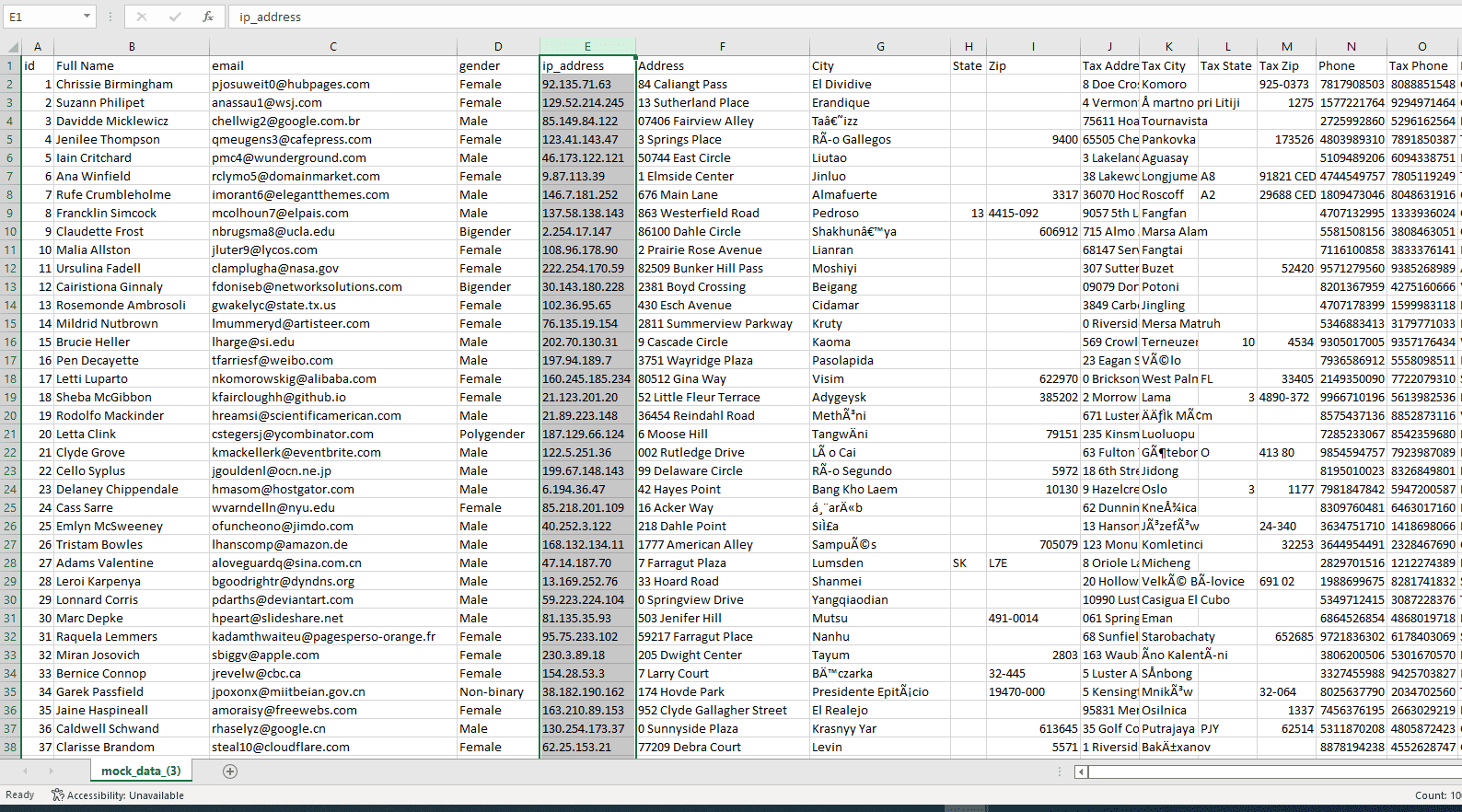
Here is what a CSV file should look like
From here, your leads will have been added. You are able to have your users log in to the dialer and start sending out calls.